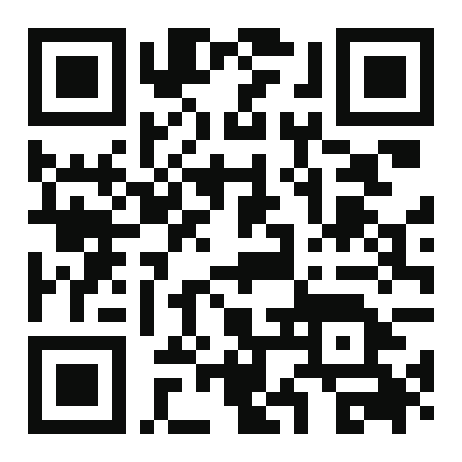
Your next QR code is one click away
Dynamic, trackable, and editable free forever. No signup wall, no forced trial, no ads on your scans.
- No account required
- Edit anytime after printing
- Real-time scan analytics
- Zero ads on your scans
Let guests join your network instantly by scanning. Step by step setup for homes, cafes, offices, and hotels.
Typing a WiFi password on a phone keyboard is slow and error prone. A WiFi QR code lets guests join your network in one scan. OnestQR offers a free WiFi QR code generator with no signup wall and no subscription paywall. This guide walks through setup for homes, cafes, offices, and hotels, and points to related guides when you need tracked marketing links instead.
A WiFi QR encodes your network name (SSID), security type, and password into a standard QR format phones recognize. When a guest scans it, Android and iOS prompt to join the network without manual entry.
WiFi codes are different from dynamic URL codes:
For tracked links on posters or packaging, use a dynamic URL QR and read how to track QR code scans. For the product comparison, see static vs dynamic QR codes.
Security minded teams should also read QR code security and safety before posting credentials where strangers can photograph them.
Generation is free and does not require an account. If you also need URL codes with analytics, create those separately via how to create a QR code.
Print a small card near the router or in a welcome binder. Laminate to survive handling. Change the QR when you rotate the guest password.
Table tents or counter signs at eye level. Pair with QR code best practices for size and contrast so scans work under dim lighting.
Reception and conference rooms only. Never post the corporate LAN where visitors photograph it. Use VLAN isolated guest WiFi.
Lobby signage and room folders. For conference WiFi plus session links, use WiFi QR for network access and a separate dynamic URL QR for the agenda (trackable per QR code analytics guide).
WiFi QRs on product packaging are rare; consumer boxes usually need support URLs instead. See QR codes on product packaging when the goal is manuals or warranty, not network join.
Regenerate and reprint when:
URL dynamic codes let you edit destinations without reprinting; WiFi codes embed credentials, so a new password means a new QR. Marketing links on the same poster can stay dynamic. Learn the distinction in static vs dynamic QR codes.
Many venues show WiFi plus "Follow us" on one card. Use the WiFi generator for network access and a URL QR for Instagram or TikTok. Start social links from Instagram QR codes or read QR codes for social media. URL codes support timestamp, device, country, and browser/OS analytics; WiFi codes do not.
Yes. No account required and no paywall on generated codes.
Not through OnestQR WiFi QR analytics. Router logs may show associations; marketing funnels need dynamic URL codes instead (scan tracking guide).
The QR pattern stays valid until you change network settings. It does not depend on a OnestQR subscription. URL expiration rules for dynamic marketing codes are covered in do QR codes expire.
Only for guest networks you intend to share. Anyone who can see the code can join. Isolate guest traffic from internal systems and rotate passwords if abused. More context: QR code security and safety.
Standard WiFi QR format targets PSK style guest networks (WPA/WPA2/WPA3 with a shared password). Enterprise 802.1X and complex captive portals usually need vendor specific onboarding, not a simple WiFi QR.
Each network or password needs its own QR. Mass unique labels are a bulk generation scenario; automated API batching is on the roadmap at QR code API.
Both recognize WiFi QR codes natively in the camera app on current OS versions. Always test on one device from each platform before a large print run, as described in QR code best practices.
Dynamic, trackable, and editable free forever. No signup wall, no forced trial, no ads on your scans.